Mozilla created Firefox, which stands out as an innovative web browser that prioritizes the user. Firefox differs from its competition because it is based on open standards and community participation. It makes it both open and very flexible to meet the needs of its users. When creating an app, testing it on different web browsers online is essential.
This blog post explores the different Firefox features and add-ons, checking out their functions, ease of use, and effect on the general browser experience. Our goal is to give you detailed, helpful reviews and guides on how to get the most out of Firefox, whether you’re just browsing for fun or are a power user trying to get more done and stay safe online.
Why Test Firefox’s Features and Extensions?
Testing Firefox’s features and extensions is crucial for several reasons:
- Better User Experience: Users can find the tools that make their viewing experience better by thoroughly trying different features and apps. This process lets people change the computer to fit their needs, whether they want to be more productive, safer, or entertained.
- Protection of your privacy and security: Firefox is known for putting privacy and safety first. Testing the different privacy- and security-focused add-ons and features ensures they do what they’re supposed to do: protect users from tracking, malware, and other online risks. This is even more important now that new security holes and privacy issues exist.
- Stability and Performance: Extensions and features can affect the browser’s overall performance and stability. Testing helps pinpoint performance issues or bugs hindering the browser’s efficiency. Users can avoid or mitigate these issues by identifying and configuring or disabling problematic extensions.
- Compatibility: Because Firefox and web standards are constantly updated, add-ons and features must be tested often to ensure they work with new browser versions and web technologies. This helps keep things running smoothly by preventing problems caused by conflicts.
- Community Contribution: Since Firefox is an open-source browser, it’s beneficial for the community to have its say. Testing new features and apps and commenting on them improves the user experience and helps the Mozilla community as a whole. This way of working together allows coders to enhance and tweak Firefox, which keeps it competitive and in tune with what users want.
- Innovation: Firefox is constantly adding new, cutting-edge features that make computers better at what they do. Users who test these features can stay on the cutting edge of technology and use tools that can change how they connect with the digital world.
Users can ensure they are getting the most out of their browser by trying its features and add-ons. They can also contribute to an environment that values user privacy and open-source teamwork.
Testing Firefox Features
Testing Firefox features effectively involves a structured approach that ensures all functionalities perform correctly and contribute positively to the user experience. Here’s a step-by-step guide on how to test Firefox features comprehensively:
- Identify Features to Test
Start by identifying the features you want to test. These could be new features in a recent update, existing features that need reassessment due to updates or bug fixes, or features underutilized by users.
- Understand the Feature
Fully understand the feature’s intended use, functionality, and the problem it solves. Review any documentation or release notes related to the feature. This background knowledge is crucial for practical testing.
- Set Up a Testing Environment
Create a controlled environment to ensure consistent results. This may include:
- Using a dedicated testing profile in Firefox.
- It is turning off other extensions that might interfere with the testing.
- We are ensuring a stable internet connection.
- Develop Test Cases
Develop specific test cases that cover all aspects of the feature. Include:
- Normal usage scenarios.
- Edge cases.
- Interaction with other features and extensions.
- Performance under different network conditions.
- Execute Test Cases
Run through the test cases systematically:
- Document any deviations from expected behavior.
- Capture screenshots or videos for visual bugs.
- Use tools like Firefox Developer Tools to monitor performance and diagnose issues.
- Evaluate Usability
Assess the feature’s usability:
- Is it easy to access and use?
- Does it integrate well with the overall browser experience?
- Is the user interface intuitive?
- Check for Compatibility and Responsiveness
Test the feature on different operating systems that Firefox supports, like Windows, macOS, and Linux. Also, check its responsiveness on various screen sizes if applicable.
- Monitor Performance Impact
Evaluate how the feature impacts the browser’s performance:
- Monitor memory and CPU usage.
- Note any significant slowdowns or crashes.
- Security and Privacy Assessment
Verify that the feature does not compromise security or privacy:
- Check for data leaks.
- Ensure compliance with Firefox’s privacy policies.
- Collect Feedback
Gather feedback from other users to get diverse perspectives on the feature’s functionality and usability.
This systematic approach to testing Firefox features ensures that you not only help improve the browser but also enhance your and others’ user experience by making Firefox more reliable, secure, and user-friendly.
Testing Firefox Extensions
Testing Firefox extensions is crucial to ensure they function as intended, enhance browser usability, and maintain a secure and stable browsing environment. Here’s a detailed guide on how to effectively test Firefox extensions:
- Select Extensions to Test
Identify which extensions you want to test. This could be based on personal or organizational needs, user popularity, or new releases. Prioritize those recently updated or essential for security, productivity, or functionality.
- Review the Extension Documentation
Before starting your tests, familiarize yourself with the extension’s features, intended use, and specific configuration settings. Understand what the extension is designed to do and any dependencies it might have.
- Set Up a Test Environment
Create a controlled environment that minimizes variables:
- Use a dedicated profile in Firefox to test extensions and avoid conflicts with existing settings or data.
- Ensure the browser version is compatible with the extension.
- Define Test Criteria
Establish what criteria the extension needs to meet, which might include:
- Functionality: Does the extension perform as described?
- Usability: Is the extension easy to configure and use?
- Performance: Does the extension slow down the browser or consume excessive resources?
- Security: Does the extension handle data securely and respect user privacy?
- Develop Test Scenarios
Create specific scenarios to test all aspects of the extension:
- Regular operation: Use the extension as an average user would.
- Edge cases: Test the limits of the extension’s capabilities.
- Interaction with other extensions and features: Check for conflicts or interoperability issues.
- Automate Testing When Possible
Consider using automation testing tools to run through test scenarios for extensions that will be used frequently or are critical. This can save time and ensure consistency in testing.
- Execute Manual Testing
For aspects of the extension that require human judgment, such as user interface and experience, perform manual tests:
- Install the extension and configure it.
- Monitor its behavior in various scenarios.
- Evaluate its impact on overall browser functionality.
- Evaluate Performance Impact
Use Firefox’s built-in developer tools to monitor how the extension affects the browser’s performance:
- Check CPU and memory usage.
- Evaluate any significant impact on browser startup and page load times.
- Assess Security and Privacy
Verify that the extension does not expose the user to security vulnerabilities or privacy risks:
- Check for permissions it requests and ensure they are justified.
- Look for secure handling of data and susceptible information.
- Document Findings
Keep a detailed record of your testing process and outcomes:
- Note any bugs or unexpected behaviors.
- Record performance metrics.
- Provide Feedback
Submit feedback and bug reports to the extension developers:
- Use the feedback mechanisms the Mozilla Add-ons site provides or the developer’s contact information.
- Repeat Testing for Updates
Extensions are frequently updated. Re-test them after significant updates to ensure new features function correctly and no new issues have been introduced.
Testing Firefox extensions methodically can significantly enhance the security and functionality of your browsing experience. It also contributes to the overall health of the Firefox ecosystem by providing developers with valuable feedback to improve their products.
Tools and Resources for Testing
When testing Firefox features and extensions, having the right tools and resources can significantly streamline the process and improve outcomes. Here’s a guide to some essential tools and resources that can aid in effectively testing within the Firefox environment:
- Firefox Developer Tools
Built directly into Firefox, these tools provide potent functionalities for inspecting pages, executing JavaScript, monitoring network activity, and more. They are invaluable for debugging and performance analysis.
- Selenium WebDriver
Selenium WebDriver can automate control of a Firefox browser instance for automated testing of web applications. It’s beneficial for regression testing and can help ensure that Firefox extensions do not disrupt web page functionalities.
- Mozilla Add-ons Developer Hub
This resource provides documentation, APIs, examples, and best practices for developing and testing Firefox extensions. It’s essential to understand the technical requirements and capabilities of Firefox add-ons.
- WebExtension APIs
These APIs allow extension developers to interact with and extend Firefox’s capabilities. Familiarizing yourself with these APIs is crucial for testing whether an extension effectively and securely uses browser features.
- Jest
This JavaScript testing framework can automate functionality testing in JavaScript extensions. It’s useful for unit testing and ensuring that individual components of an extension perform as expected.
- ESLint
For JavaScript extensions, ESLint can help maintain code quality and consistency. It checks for common errors and potential issues in code, which is critical for the stability and performance of Firefox extensions.
By using these tools and resources, testers can successfully check that Firefox features and plugins meet quality standards for usefulness, performance, and security. These tools not only make testing more accessible, but they also help people keep learning and getting better at test methods.
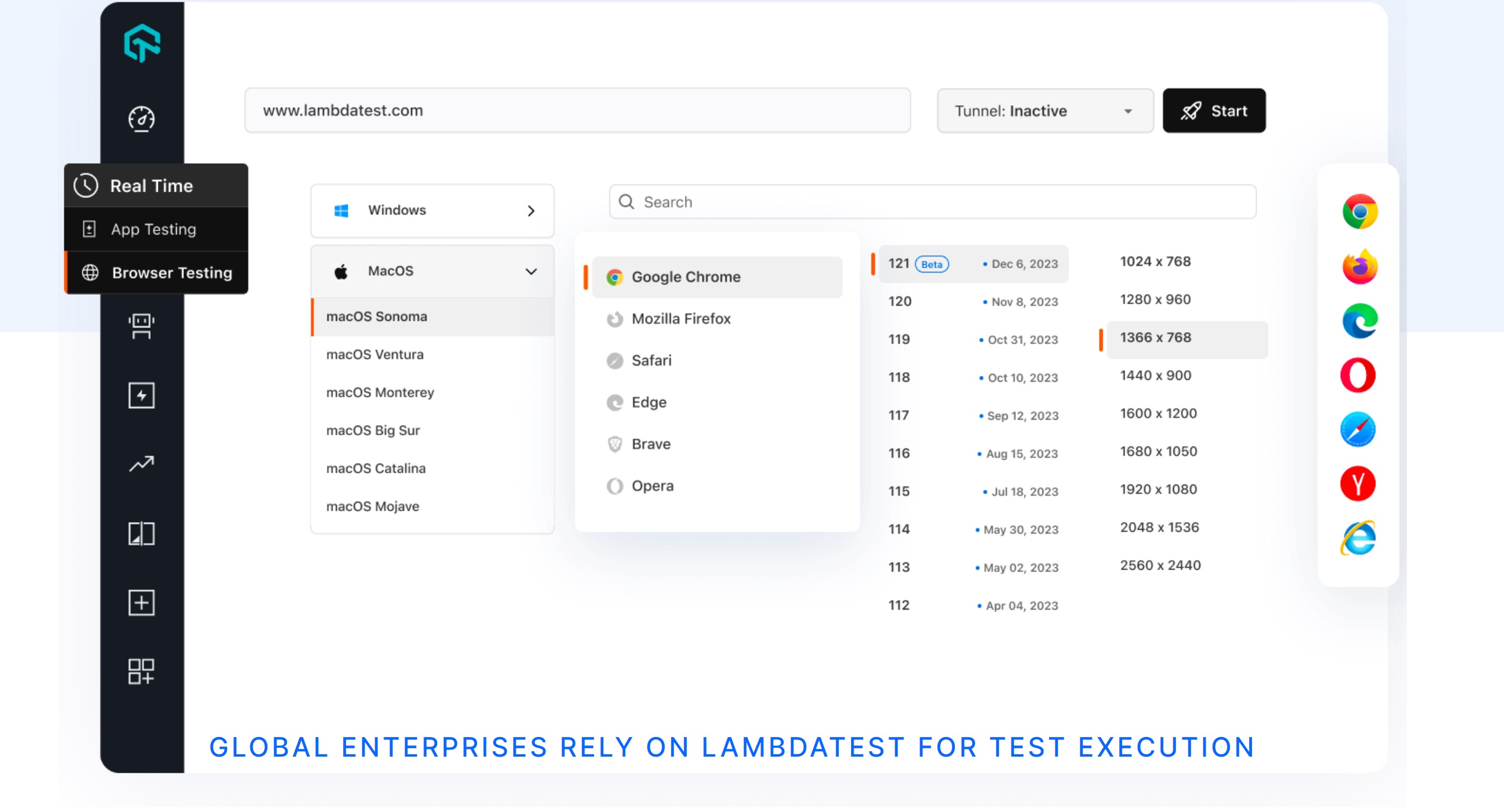
LambdaTest has many tools and services for testing websites and web apps on different Firefox browser versions.
LambdaTest lets you use many versions of Firefox, from older versions like Firefox 4 to the newest and even beta versions. It enables developers and testers to ensure their applications work seamlessly across all potential user environments.
The cloud-based platform LambdaTest, It is an AI-powered test orchestration and execution platform that lets you run manual and automated tests at scale with over 3000+ real devices, browsers, and OS combinations. It allows live interactive testing, allowing testers to actively engage with their web applications or websites in real-time across various versions of Firefox. This feature is crucial for immediate feedback and quick debugging.
LambdaTest supports automation testing using a secure, cloud-based Selenium Grid that includes over 3,000 real browsers and operating systems, encompassing numerous Mozilla Firefox browsers. It allows for scalable and efficient testing processes.
Testers can pretend to be users interacting with a website or app from various IP addresses to ensure that localized experiences are accurate and that the website or app works well for all users, no matter where they are.
Conclusion
In conclusion, checking Firefox features and add-ons is integral to keeping the browser a practical, safe, and effective tool. Testers can thoroughly check these parts’ features, speed, and safety by using a range of resources and tools, including Firefox Developer Tools, Selenium WebDriver, and Mozilla’s Add-ons Developer Hub.
Good testing not only improves the experience of the individual user but also helps the Firefox community as a whole by making the goods better.
To participate in this testing process, you must be willing to keep learning and changing because web tools and standards are constantly evolving. Testers must stay current on the latest news and use the best tools and methods.
About Author